
How to Book a Session
Booking a session vocal assessment or a vocal coaching is very intuitive and easy, so you should not need this guide. However, if you are not certain or just want to see what it entails, this guide walks you through each step in detail so that nothing gets in your way.
✨ Need help? If you experience any issues, contact us here
Follow the links below to skip to any step in the session booking process:

📅 Before You Start
Have this ready:
- Your preferred date and time
- A valid email address (for confirmation and meeting link)
- Your chosen song if this is a vocal assessment
- Your payment method (via PayFast)
🔍 How to Find the Booking Page
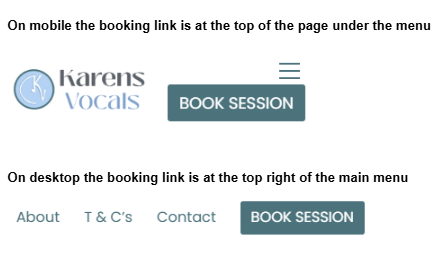
- On mobile: Tap the menu and select “Book Session” near the top of the page.
- On desktop: Click the “Book Session” button in the top-right of the main menu.
- You can also find booking links on various pages throughout the website.
Links to the Book a Session page
💼 Step 1: Select a Service
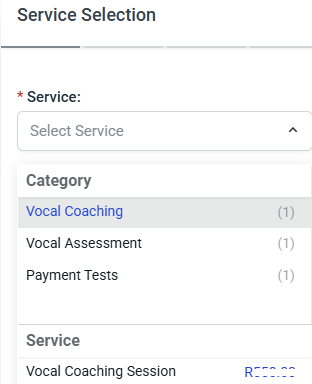
- Tap or click “Book Session” to go to the bookings page.
- Tap or click “Select Service”
- Choose a category (e.g. Vocal Assessments, Online Lessons)
- Select the specific service you want
- Tap or click “Continue”
Selecting a vocal service
🕒 Step 2: Choose Your Date and Time
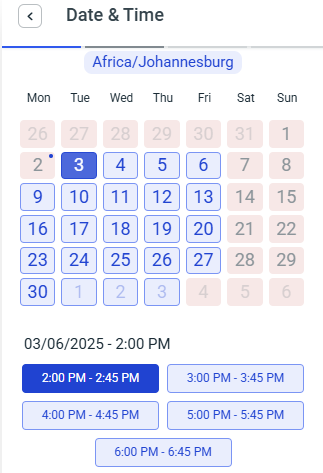
- A calendar will appear showing available dates
- Tap or click your preferred date
- Choose an available time slot
- Tap or click “Continue”
Session booking date time picker
♻️ Step 3: Repeat Sessions (Optional)
Some services allow repeat bookings:
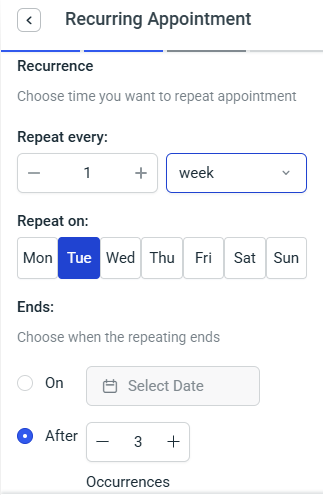
- Select “Yes” if you’d like to schedule future sessions
- Select “No” if this is a one-time session
You can choose:
- Recurring sessions (same time each week)
- Specific future dates and times
To go back to a single session, use the Back button.
Booking a repeat session
🏦 Step 4: Checkout
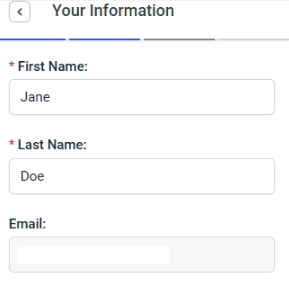
👤 Enter Personal Details
- First Name and Last Name are required
- Email address is required to:
- Confirm your booking and payment
- Send you the Google Meet link
- Communicate if anything changes
- Phone number is optional
Tap or click “Continue”
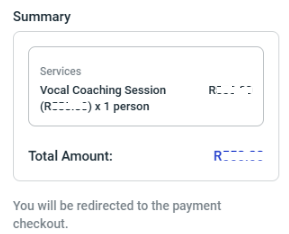
💳 Payment Summary
- Review your service and total cost
- Tap or click “Continue”
⚖️ Enter Checkout Info
- Provide any additional details or notes
- Choose PayFast as your payment method
- Tap or click “Place Order”
💵 Make Payment
- Select your preferred PayFast payment method
- Enter your details and complete payment
- You may be asked to authorise the transaction via SMS, OTP, or your banking app
Checkout - personal details
Payment summary
📆 Step 5: Booking Confirmation
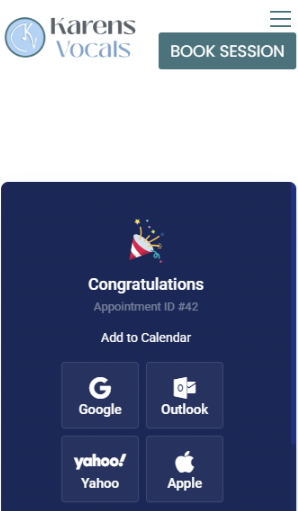
- After successful payment, you’ll see a confirmation screen
- Tap or click to add the session to your calendar
You’ll also receive:
- A PayFast email receipt
- A KarensVocals confirmation email
- A Google Calendar invite for your online session (or details for in-person lessons)
🖉 If you don’t see a confirmation, check your spam folder or contact us.
Book a session - booking confirmation
💼 Preparing for Your Session
- Have your backing track, microphone, or digital piano ready to go
- Check your Google Meet link the day before to ensure it works
- Sessions take place via Google Meet, which works on any modern browser
❓ Having Trouble?
If something doesn’t work or you’re unsure of anything, please contact us and we’ll be happy to help.
